Friday, March 20, 2015

When To Use .jpg vs. .gif vs. .png

This infographic will help you determine when to use different graphic formats might be useful.


Monday, September 23, 2013

LiberKey---Portable Applications


A complete application platform for local or portable (put on flash drive) use.
It allows you to manage your applications quickly.

LiberKey is a complete application platform that allows you to quickly launch and manage
your applications. Install an application from LiberKey catalog is done with 2 clicks but
you can easily add any other application.

Here are some key features of "LiberKey":
· A menu with advanced features which allows you to organize and manage your
 applications.  (categories creation, shortcuts, tabs/menus, smart search,
drag-n-drop, and more). floatting menus for quick access from your desktop

· Portable files associations : You can open files and protocols
(http, ftp, mailto, etc) with the application of your choice

· Portable desktop shorcuts : shortcuts to your applications are placed on the desktop
and removed when your exit LiberKey

· Automatic online updates (LiberKey platform and applications of the catalog)
which allows you to be always and easily up to date

· Synchronization with the online catalog


Tuesday, April 30, 2013

The Big 6 in eBooks


A Facebook page devoted to highlighting that "Six major publishers are making it difficult, if not impossible, for libraries to purchase eBooks." It lists bestsellers, and indicated whether or not they're available to libraries - and why. 


A Quick Guide to Private Browsing


Re-postedOriginally written by Ellyssa Kroski

On April 22, 2013, Google was hit with a fine of $190,000 in Germany for illegally collecting personal data, emails, passwords, and photos from unprotected wifi networks via its Google Street View cars. Coincidentally, Microsoft launched an Online Privacy Awareness Campaign yesterday which will help people learn how to better protect their online privacy. Two of the major ways discussed are actually quite easy to implement – turning on private browsing mode and enabling the Do Not Track feature in your browser.

Private Browsing

By enabling the private browsing setting, you are keeping everything you do in the browser from being saved and stored. None of your download lists, browser history, passwords, cookies, caches, or temporary files will be stored. This will keep anyone who has access to your computer from viewing your online activity. It will also allow you to be signed into the same social network such as Facebook or Twitter with different logins at the same time.

How-To:

inprivate
Internet Explorer 10
In IE, private browsing is called InPrivate. To initiate InPrivate browsing press Ctrl+Shift+P.
private_firefox
Firefox 20
To start private browsing in Firefox press Ctrl+Shift+P.
incognito
Chrome
In Chrome, private browsing is called Incognito and can be initiated by pressing Ctrl+Shift+N.
safari_private
Safari
For private browsing in Safari, click on “Safari” in the menu bar and select “Private Browsing”.

Do Not Track

Many major websites, search engines, and online tracking companies track visitor behavior such as searches, purchases, locations, likes, dislikes, etc. in order to sell or simply provide that information to third parties such as advertisers. However, most browsers now have a Do-not-track feature that can be turned on which tells every website you visit (as well as their advertisers and other content providers) that you don’t want your browsing behavior tracked. Honoring this setting is voluntary.

How-To:

Internet Explorer 10
ie_do_not_track
  1. Click or tap the Tools button, point to Safety, and then click or tap Tracking Protection.
  2. Click or tap Your Personalized List, and then tap or click Enable.
Firefox 20
firefox_do_not_track
  1. At the top of the Firefox window, click on the Tools menu and then select Options
  2. Select the Privacy panel.
  3. Check Tell websites I do not want to be tracked.
  4. Click OK to close the Options window
Chrome
chrome_do-not_track
  1. You’ll need to install the Do Not Track browser extension.
  2. On the menu bar at the top of the screen, click on Window.
  3. Click on Extensions.
  4. Chrome will display all of the extensions you have installed.
  5. If you don’t have any extension installed, click the Browse the gallery. If you have extensions installed click the Get more extensions link at the bottom of the screen.
  6. Search for the Do Not Track extension written by Jonathan Mayer
  7. Click “Add to Chrome.”
  8. In the drop down menu click “Add.”
Safari
safari_do_not_track
  1. Click on Preferences
  2. Select the Advanced preferences panel
  3. Check the box at the bottom of the menu labeled “Show Develop menu in menu bar.”
  4. On the menu bar at the top, click on Develop
  5. Click on “Send Do Not Track HTTP Header.”

Saturday, April 13, 2013

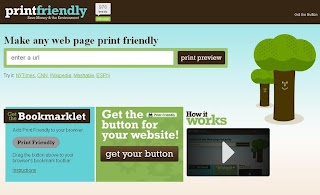
Print Friendly


Print Friendly is specifically designed to make printing web pages easier especially ones with frames. You can copy/paste in the URL of the page you want to print, it grabs the content, and then you have full control over which parts of the page actually print - it lets you remove anything you don't want.

PrintFriendly makes it so easy to remove all the junk (just click on whatever you want to delete). This means the good content fills the page.

It isn't perfect on some sites such as Zap2it.com listings.  It's prints better the regular way of just pressing Print in the browser.

A few more neat features: once you render a page to print in PrintFriendly, it gives you the option to print, create a PDF, or email it. Very handy.

Monday, January 14, 2013

Safe Public Computer Tips

Did you know that keyboards can carry germs? In the midst of Cold and Flu season, it can be important to make sure you keep yourself germ-free on our public access terminals!

Use Hand Sanitizer
Using hand sanitizer before and after using one of our public computers will reduce the chance of harmful germs being transferred.  Hand sanitizer is located at the front desk.

Do not touch your face while using the computer
While using hand sanitizer will kill the germs before and after you use the computer, during computer use, any germs that may be on the keyboard will be transferred to your hands. According to research, this increases the chance of catching a cold/virus.

Wipe the keyboard
If you're worried about germs on the keyboard, you can wipe down the keyboard with an antimicrobial wipe. Wipes will soon be available at the library during the cold and flu season.

Don't forget - these tips aren't just for keyboards! You can also find out more about cold and flu prevention by reading FOX's "Tips for staying healthy during cold and flu season"

Thursday, January 3, 2013

Sharing Link Bundles with Students


If you have ever tried to get all of your students to the same set of websites at the same time, you know that just a couple of mistyped characters can create a frustrating experience. One solution is to post all of the links on your course blog. Another solution is to use a link bundling service that will group all of your links together into one package. Then instead of sending out a bunch of individual links you can just send one link that will open all of the bundled links for your students. 

Bundlenut is a simple service for organizing a set of links and sharing them with others. To use the service just visit Bundlenut and start entering the links that you want to include in your bundle. You can include comments about each of the links. When you have added all of links that you want to include in your bundle, Bundlenut will assign a unique url to your bundle. Anyone with access to that url will be able to see all of your links and comments about those links. You can use the service with or without registering. The advantage of registration is that you can go back and modify your bundle whenever you would like to.


LinkBunch is a free service that you can use to quickly send a group of links to your friends, colleagues, and students. To use the service just visit LinkBunch, enter the links that you want to share, and click "Bunch." When you click on "Bunch" you will be given a URL to share with anyone you want to see the links in your bunch. When someone clicks on the URL for your Bunch he or she will be able to open the links you bunched together. 

Bitly is one URL shortener that I have been using for years. It's simple to use, especially if you use the bookmarklet, allows you to customize URLs, and it offers good statistics about the use of your links. Bitly offers an option for bundling bookmarks into one package that you can share with just one link. Bitly bundles can be created collaboratively if you invite other Bitly users to bundle links with you.

Monday, December 3, 2012

New Items Available for in Our Travel 2.0 Collection

7" Dual Screen Mobile DVD Systems


It features built-in stereo speakers, a headphone jack, remote control, 
mounting kits, AV cables, car power adapter, and AV input & output jacks.

Each Mobile DVD System checks out for 1 week with the option to extend the
checkout to 2 or 3 weeks. As with the other Travel 2.0 items, the Mobile DVD
systems are first come-first serve with no renewals.

Monday, October 29, 2012

Introducing Playaway Views


Playaway View is the simplest way to enjoy digital video
content on the go. It comes with the video content already
pre-loaded on it and ready to play. Each Playaway View has a
3.5” full-color LCD screen, weighs just over 5 ounces and holds
up to six hours of content.

Playaway View offers our library and our patrons access to
award-winning programs from providers such as PBS, National
Geographic and more. With Playaway View, our library can provide our
patrons with portable educational programming and entertainment that
was designed with libraries in mind.


Thursday, October 25, 2012

youTube

youTube

a Popular Websites for Beginners Overview


What is youTube?

youTube is an online video website. Users create content (videos) and upload them to youTube to share them with friends, family, or just the world. Users can visit youTube to watch videos, create playlists of videos, and comment on videos.

In recent years, more commercial entities have partnered with youTube in order to offer official channels with official content (i.e. Music videos from Vevo).

There are all sorts of videos on youTube: friends taping birthdays, animals playing outside, indie web shows (like television shows), and more!

Who uses youTube?

A lot of different people are using youTube for a variety of reasons. Children use youTube to look up video game walk throughs, Teens use it to listen to music. Many adults use it for friendly how-to videos. Some use it to watch the news.

What can I do with youTube?

  • Submit/Upload videos
  • Watch Videos
  • Comment on Videos
  • Create Video Playlists
  • Rate Videos

How do I get started?

You go to youtube.com. You can watch videos without an account, but in order to upload content or comment, you will have to create an account.

For more information 

 Online Resources:
Library Resources:
You can request books in our system about youTube. Click here to see what is available in SWAN.

About Popular Websites for Beginners series

Popular Websites for Beginners is our bi-weekly series that highlights a trending or popular website. We'll give you an overview of the website and resources to learn more about it. If you have a specific website you want us to highlight, drop us a comment!

For more posts in this series, click on the 'Popular Websites for Beginners series' tag below!

Monday, October 22, 2012

What to expect when you're expecting Office 2013

You may have heard that there's a new Office coming to town... and it's true. Office 2013 is scheduled to be released in early 2013. While you're waiting for the release, here's some good articles that will tell you all about the changes to expect in 2013! (Please Note: The views expressed in the articles are not the views of the library.)

Arstecha's Office 2013 Preview
http://arstechnica.com/information-technology/2012/07/office-2013-preview-the-speed-read/
"Microsoft has released a wave of preview versions of its upcoming Office 2013 office productivity software and services, with the first public preview released on July 16. Ars continues to dig into the previews, looking at each aspect of the platform’s client software and cloud services—including the apps for the Office add-in developer framework. So far, here’s what we know, and a round-up of our in-depth reviews:" [Read More]
Office 2013 Beta Review:
http://www.dedoimedo.com/computers/office-2013.html
"How do you know Microsoft is a huge corporation? Because it launches products with a staggering amount of inconsistency among them, including some super-cool solutions alongside dreadful concepts that never should have been born. There are a few things that Microsoft really excels at, and that's being a player in the big league, top-notch support, serious business attitude, a strong presence and dominance in the office space." [Read More]
Computer World's Office 2013 Beta Review
http://www.computerworld.com/s/article/9229157/Office_2013_beta_review_Microsoft_almost_nails_it
"The just-released beta of Microsoft's Office 2013 gives the application suite one of the biggest aesthetic facelifts the package has ever received, with a flatter, Windows 8 Metro-like look, Ribbonless operation for those who favor a cleaner interface, better integration with the cloud, and a number of features designed for tablets and touch devices. The look of the new suite fits right into Windows 8, but works just as well on earlier versions of Windows." [Read More]

If you're interested in testing it out, you can preview and learn more about the new Office 2013 at Microsoft's Office Preview website: http://www.microsoft.com/office/preview/en

Learn More about Office 2013 and when it will be released:

Thursday, October 11, 2012

Reddit

Reddit

a Popular Websites for Beginners Overview


What is Reddit?

Reddit is a bookmark/link community. The main purpose is to submit links and then you can comment, rate them up, or rate them down. It's also known as a social news site [Definition: A social news site is where users submit news (or links) and where they rank on the front page is determined by popularity instead of relativity or content].

Reddit has a lot of subreddits [Definition: Topics, i.e. 'Technology" "World News", etc.] to which content is posted.

Who uses Reddit?

Reddit is mostly used by Young Adults, of which most of them are male. If you're interested in knowing more statistics, there is a fun Prezi you can go through with more breakdowns [Link to "Who uses Reddit?"]

What can I do with Reddit?

  • Bookmark/Submit Links
  • Comment on submitted Links
  • Vote Up/Down Links

How do I get started?

You go to reddit.com and create an account. Creating an account is easy and does not require an active email account to use. Once you have created an account, you can start submitting links.

For more information 

 Online Resources:

About Popular Websites for Beginners series

Popular Websites for Beginners is our bi-weekly series that highlights a trending or popular website. We'll give you an overview of the website and resources to learn more about it. If you have a specific website you want us to highlight, drop us a comment!

For more posts in this series, click on the 'Popular Websites for Beginners series' tag below!

Thursday, September 27, 2012

Prezi

Prezi

a Popular Websites for Beginners Overview


What is Prezi?

Prezi is an alternate form of presentation software. Traditional presentation software allows you to create multiple slides. With Prezi, you are making one big slide, but zooming in on the content. Some prefer this method because it allows you to 'paint a bigger picture' while still being able to 'zoom in on the details'.

The best way to understand a Prezi is to experience one. A good example is "The Prezi Story" which gives the story behind Prezi's founders [Link to "The Prezi Story"]

Who uses Prezi?

Prezi is used by teachers, presenters, students, business professionals, and more!

What can I do with Prezi?

  • Create presentations
  • Share presentations
  • Collaborate on presentations

How do I get started?

You go to Prezi.com and create an account. You will need an active email address or Facebook Account to get started. Once you create an account, Prezi will guide you through setting up your first presentation.
Go to Prezi(.com)

Prezi has three account options: Public (which is free), Enjoy ($59/yr), and Pro ($159/yr). For more information about the different account features, check out Prezi's pricing page.

For more information 

 Online Resources:
Library Resources:
  • Find books/materials about LinkedIn at any SWAN Library [Link to SWAN]
Upcoming Programs at the Richton Park Library:
     Join us Saturday, October 13th from 1-4pm for our Prezi Workshop

About Popular Websites for Beginners series

Popular Websites for Beginners is our bi-weekly series that highlights a trending or popular website. We'll give you an overview of the website and resources to learn more about it. If you have a specific website you want us to highlight, drop us a comment!

For more posts in this series, click on the 'Popular Websites for Beginners series' tag below!

Wednesday, September 26, 2012

50 Ways To Use Your Amazon Kindle


Came across this article and I'm resharing it.  Enjoy.

The Kindle is good. The Kindle is great. We surrender our will, as of this date! Amazon’s own ereader attracts its fair share of fans, but its potential stretches well beyond merely reading various ebook documents.

In addition, numerous hacks and tricks exist to push the Kindle even further, either extending its life, saving money, or tacking on some brand new features. Enjoy a few random tips to pique ebook readers’ interest, some of which require a bit of hardware and software literacy, some of which can be executed with only one neuron firing.
  1. Make a cover out of old hardbacks:

    Repurpose an old hardcover novel to whip up a sexy casing for the Kindle that blends classic reading styles with the hot new technological thing.
  2. Custom screensavers:

    Further customize that Kindle by hacking it and downloading pictures to serve as decorative screensavers, though do keep in mind the procedure differs from device to device.
  3. Download from the public domain:

    Save money on the classics (and maybe a few well-hidden gems!) by scouring Amazon for its myriad public domain options, which run the gamut of genres.
  4. Unicode:

    This hack does not work on the Kindle 1, but for later models it allows for a much wider range of fonts and alphabets.
  5. Play Minesweeper:

    Alt+Shift+M, when pressed simultaneously, launches a hidden Minesweeper game for long trips and commutes when reading just won’t do at all.
  6. GoMoku:

    Once inside Minesweeper, hit G and call up GoMoku, another game also known as Five in a Row.
  7. Kintweet:

    Live tweet your latest read after downloading this app, which allows for updating the ubiquitous miniblogging site on yet another device.
  8. Take screenshots:

    Kindle Fire users can snap screenshots with a Java Development App and Android Software Development Kit download and a few little tweaks, all of it outlined in detail at the included walkthrough.
  9. Get driving directions:

    Follow these instructions for information about converting the Kindle into a veritable GPS using Google Maps and its text-based driving directions.
  10. Geolocation:

    Not only will the humble ebook reader allow for driving directions, typing in the right sequence of questions — as outlined in the link — calls up data about the nearest restaurants and gas stations.
  11. Instapaper:

    Read more than just books by downloading Instapaper and saving websites, blog posts, and other internet writings for offline viewing.
  12. Kindle (free) Book Club:

    OK, so this Facebook group is more tip than trick, but all Kindle owners should still join it and learn all about freebies available in the UK and US.
  13. Remove the DRM:

    This hack will definitely void that warranty, but for Kindle enthusiasts hoping to share content with other devices in their possession will want to read up on how to eliminate the DRM in their way.
  14. DIY book light:

    With a little bit of Velcro and a commercial book light, anyone hoping to engage in a little night reading on their Kindles can enjoy doing just that.
  15. Calculator function:

    Kindle DX devices perform some rudimentary mathematical (and even trigonomical!) functions whenever equations get typed in the search bar.
  16. Calibre:

    Calibre offers up a far more streamlined, organized strategy for maintaining an ebook library, making it an ideal upgrade from the Kindle’s default.
  17. Online guides:

    Amazon keeps digital copies of the user’s guides for all its Kindle devices right there on the site for referencing on the go.
  18. Tell time:

    For moments when you’re just too lazy to check your watch or phone, press the Kindle into service by typing @time into the search bar or pressing Alt+T.
  19. Activate text-to-speech:

    These detailed instructions illustrate how to switch on the text-to-speech function and alter its settings to fit users’ specific needs.
  20. Wifi tether:

    Kindle owners who don’t mind violating the terms of service can use the 3G service on their devices to browse the internet on a companion gadget, as the included link outlines.
  21. Take advantage of lends:

    Amazon itself encourages users to connect with one another and trade their ebooks over Kindle — and best of all, one doesn’t even have to possess the device to enjoy this perk!
  22. Check out ebooks from the library:

    Many plugged-in public libraries these days also check out ebooks, which expire after a specified time frame rather than requiring a trip to check them back in before the due date.
  23. Android apps:

    Owners of both an Android and a Kindle ought to delight in knowing that a bit of hackery (a guide for which is included at the link) means enjoying apps designed for the former on the latter.
  24. Refresh screen:

    Alt+G refreshes and rids the screen of any ghosting effects, which sometimes occur on all Kindle devices.
  25. Custom fonts:

    Jailbroken Kindles offer up so many more font choices, but access to this customization feature requires a little bit of work, as these instructions detail.
  26. DIY screen protector:

    Keep that Kindle from sustaining too much screen damage with a quick and painless homemade protector, which costs roughly five cents to make.
  27. eReaderIQ.com:

    Savvy consumers know it might prove more financially prudent to wait a bit for ebook prices to drop before buying. That’s where this site comes in handy! Use it to track how much specific reads are going for these days, and sign up for notifications when the cost shifts around.
  28. Clean with Windex:

    Just make sure to spray cleaner on the paper towel first, not directly on the gadget, then gently wipe the screen down.
  29. Learn about eye strain:

    Do extensive research before purchasing any Kindle device to make sure eye strain won’t settle in and waste your time and money. Slash Gear’s Chris Davies warns against the Fire for people who read quite a lot, as it might cause serious vision issues, even after fiddling with the settings.
  30. Know how to reduce the aforementioned eye strain:

    If Thundercats are go for picking up an ebook reader, keep some of this article’s tips in mind to make sure those eyes don’t get all crossed and sore after a while.
  31. Run newer firmware on older devices:

    Amazon may pump out new ebook readers, but users hoping to save money can still enjoy the latest features on their obsolete gadgets thanks to the Kindle 3.X updater script.
  32. Reset:

    It might, unfortunately, mean the loss of bookmarks, but better those than a pricy gadget. The instruction manual’s outline for resetting almost always works; in the event it doesn’t, give this technique a whirl.
  33. Remove “special offers” ads:

    Nobody digs ads except for the ones profiting off them, and Kindle owners wanting to rid their devices of them should click the link and find out how to do so.
  34. Look at pretty pictures:

    Jun Azua’s quick guidelines illustrate how to switch on the Kindle’s picture viewing mode, which exists but is switched off by default and getting there isn’t exactly straightforward.
  35. Switch off the 3G to save battery life:

    A simple strategy that saves on future migraines: because the 3G connection requires so much juice, turning it off when it isn’t even necessary increases the battery’s longevity.
  36. DailyLit:

    Challenge yourself to read a little bit every day with DailyLit’s offerings via e-mail and RSS, which chop up a book into chunks for easier digestion.
  37. Listen to music:

    Because the Kindle plays MP3s, it makes perfect sense that users may download music rather than audiobooks. Unfortunately, it offers little control over what order the individual songs pop up in, but the trick still works in a pinch!
  38. Hey! Free Android Tablet!:

    CyanogenMod 7 transforms Kindle Fires into full-on Android Tablets, although it takes a little bit of time to get it there. Follow these detailed directions for warranty-breaking good times.
  39. 411 & 611:

    When parked in settings, type in 411 for diagnostics and 611 for constantly updated radio diagnostics.
  40. KIF:

    Lovers of oldschool text-based adventure games adore KIF, a program allowing them to play exactly that right on their Kindle devices.
  41. Bluetooth capabilities:

    With a little hacking and sawing using the directions here, that Kindle can work as a fine Bluetooth terminal for go-getters needing more support.
  42. Try repairs at home:

    Kindle Fires sport a very simple, streamlined design with fewer parts than one would imagine. More handy electronics types might want to follow this video for information about disassembling for DIY repairs.
  43. Second monitor:

    Take advantage of the ebook reader’s screen as an additional monitor for a laptop or desktop setup using these step-by-step instructions.
  44. Restore the justification toggle:

    With a simple bit of coding, included in the link, Kindle fans wanting left justification as opposed to full receive their wish.
  45. Inkmesh:

    Use the Inkmesh search engine and check for free ebooks and price comparisons for a wide number of reading devices.
  46. Nokey DeCal Skins:

    Some Kindles lose the letters on their keyboards from regular wear and tear, and Amazon will bestow free decals to those complaining of the issue, or customers hoping to prevent the problem can pop onto the site and buy their own.
  47. Replace the screen at home:

    Save time and money by learning how to replace a cracked LCD at home, thanks to this simple how-to and a Phillip’s head screwdriver.
  48. Check email:

    Kindle’s browser capabilities exist as rudimentary at best, but Hotmail, Gmail, and Yahoo! Mail all work just fine, though users need to read up on the ideal viewing settings for each.
  49. Transfer documents:

    Determine your Kindle e-mail address first, then use it to send documents from other internet-enabled devices — a perfect strategy for transferring ebooks from a laptop to a reader. Just know that Amazon charges for this service!
  50. Watch movies:

    Because the Kindle Fire plays MPEG-4 files, many savvy owners press it into service as a way to watch movies on the go! Find out how by clicking the link.

Saturday, September 15, 2012

Short Video Contest 2012


4045 Sauk Trail, Richton Park, IL 60471 ~ http://www.richtonparklibrary.org


Short Video Contest 2012
September 15th—November 15th
Are you the next short film superstar?

Create a 5-15 minute short film about books, the library, or the community. 
The top three crowd favorites will win a cool prize!


Entry Rules
1. Videos must be between 5 and 15 minutes long
2. Videos must be the entrant’s original work and shall not infringe on any copyrights
3. Videos should be about books, the library, or the community
4. Videos should be appropriate for patrons of all ages
5. Entries must be submitted online or at the library by closing on November 15th
6. You may enter by uploading the video to your video host of choice (i.e. YouTube) and emailing the link to library@richtonparklibrary.org (Subject: Short Film Contest) or by burning the video to DVD and submitting it in person at the library
7. Winners will be determined by audience vote at the Short Film Festival on Wednesday, December 5th, 7:00-8:30pm

NEED A VIDEO CAMERA?
Check out a Flip Camera from our Travel 2.0 collection! 

HAVE A QUESTION?
Ask Below! We'll get back to you as soon as possible!

Thursday, September 13, 2012

LinkedIn

LinkedIn

a Popular Websites for Beginners Overview

What is LinkedIn?

LinkedIn is a social network for professionals.
If you're not sure what social networking is
check out thisgreat article at About.com: [CLICK HERE]

Who uses LinkedIn?

LinkedIn is used by Business Professionals, Companies, and Job Seekers to create business connections, offer employment opportunities, or to find a new job.

What can I do with LinkedIn?

  • You can create a professional profile, which allows you to create essentially an online resume. You fill in your work experience, your skills, education, etc.
  • You can find others you know, either friends, coworkers, former co-workers, potential clients, and more on LinkedIn and make a connection with them
  • You can write recommendations for people in order to help them gain employment
  • You can find a job (Job Seekers)
  • You can join groups for specific areas (i.e. the American Library Association has a group where members can network)
  • and more!

How do I get started?

You go to Linkedin.com and create an account. You will need an active email address to get started. Once you create an account, LinkedIn will guide you through setting up your profile.

For more information 

 Online Resources:
Library Resources:
  • Find books/materials about LinkedIn at the Richton Park Public Library [Link to SWAN]
  • Find books/materials about LinkedIn at any SWAN Library [Link to SWAN]
Upcoming Programs at the Richton Park Library:
     Join us Wednesday, November 7th, 2012 from 1pm-3pm for LinkedIn Basics

About Popular Websites for Beginners series

Popular Websites for Beginners is our bi-weekly series that highlights a trending or popular website. We'll give you an overview of the website and resources to learn more about it. If you have a specific website you want us to highlight, drop us a comment!

For more posts in this series, click on the 'Popular Websites for Beginners series' tag below!

Tuesday, September 11, 2012

eReader Comparison Chart Fall 2012

With the unveiling of Amazon's new line of Kindles, we've updated our eReader Comparison Chart. You can view it below or download the PDF from our website! Enjoy!


If you have any questions, you can always call us up, or attend one of our eReaders made Easy programs! The next one is Friday, October 12th, 2012 from 11am-12pm at the library!